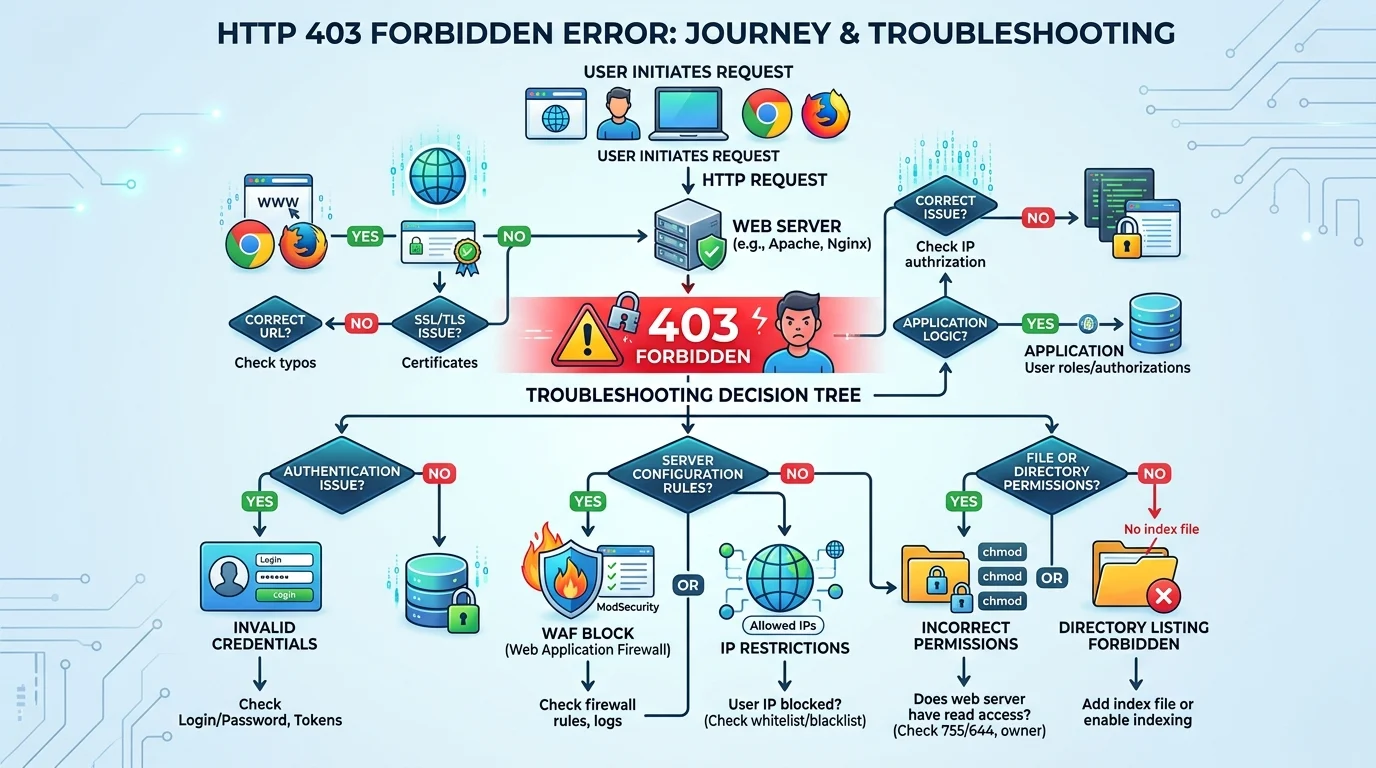
Quick Ans: Getting a response code 403 means “Forbidden” – the server understood your request but refuses to fulfill it due to permission issues . Here are 5 quick things to try: Refresh the page, clear your browser cache, check the URL for typos, disable your VPN temporarily, or contact the website owner. These simple steps resolve most 403 errors.
You’re just trying to load a webpage, and suddenly – BAM. A response code 403 slaps you in the face. Annoying, right? Whether you’re managing a website, trying to access important content, or just browsing, this HTTP status code can stop you dead in your tracks. The good news? A 403 error isn’t the end of the world. It simply means the server knows who you are but decided you don’t have permission to access that specific resource . Understanding how to handle a response code 403 can save you hours of frustration. Let’s dive into practical solutions that actually work, no matter your technical skill level.
Quick Fixes to Try First
1. Refresh the page immediately
Example: When you first encounter the error and want to rule out a temporary glitch
Meaning: Sometimes 403 errors are momentary and a simple refresh resolves them
2. Double check the URL you typed
Example: Before diving into complex troubleshooting
Meaning: Mistyped URLs often cause 403 errors, especially if you’re accessing a file instead of a directory
3. Clear your browser cache and cookies
Example: When the error persists after refreshing
Meaning: Outdated cached data might be triggering the permission denial
4. Try incognito or private browsing mode
Example: When you suspect browser extensions or cached data are interfering
Meaning: A clean browsing session eliminates local variables
5. Disconnect from your VPN
Example: If you’re using a VPN service
Meaning: Some websites block VPN IP ranges and show a 403 response
6. Log in to the website if possible
Example: When accessing member-only or private content
Meaning: Improperly configured servers might show 403 instead of a login prompt
7. Try a different browser
Example: When troubleshooting whether the issue is browser-specific
Meaning: Rules out extension conflicts or browser-specific settings
8. Check if the website is down for everyone
Example: Before blaming your own setup
Meaning: The issue might be on the server side, not your end
9. Wait and try again later
Example: When you’ve tried everything else
Meaning: Server administrators might be actively fixing the issue
10. Contact the website owner directly
Example: When you genuinely need access to the content
Meaning: They can verify permissions or identify misconfigurations
Understanding What Response Code 403 Really Means
1. It means “Forbidden,” not “Unauthorized”
Example: When explaining the error to someone else
Meaning: 403 means you’re recognized but lack permission, unlike 401 which means you’re not authenticated
2. Your IP address might be blocked
Example: When troubleshooting access issues
Meaning: The server might have denied your specific IP address
3. The server understands your request completely
Example: Understanding the technical side of the error
Meaning: The issue isn’t a server malfunction – it’s a deliberate access restriction
4. It’s a client error, not a server error
Example: When diagnosing where the problem lies
Meaning: The 4xx status code means the issue is with the request, not the server
5. Repeating the same request won’t help
Example: When you’re tempted to keep clicking refresh
Meaning: Without changing something (permissions, credentials, or approach), the response remains the same
6. It could be intentional for security reasons
Example: When accessing sensitive directories
Meaning: Servers often return 403 to protect resources from public viewing
7. Your file permissions might be incorrect
Example: When managing your own website
Meaning: The web server process lacks read access to the requested files
8. The .htaccess file could be blocking you
Example: When working with Apache servers
Meaning: Server configuration rules might explicitly deny access
9. Security plugins can trigger 403 errors
Example: When using WordPress or other CMS platforms
Meaning: Firewall or security software might flag legitimate requests as threats
10. A missing index file can cause 403
Example: When accessing a directory URL
Meaning: Servers return 403 when directory listing is disabled and no default file exists
Fixes for Website Owners and Admins
1. Check your file and folder permissions
Example: When you own the website showing 403 errors
Meaning: Set directories to 755 and files to 644 for proper server access
2. Review your .htaccess configuration
Example: When using Apache servers
Meaning: Look for “deny from all” rules or misconfigured redirects
3. Deactivate security plugins temporarily
Example: When using WordPress and suspect plugin conflicts
Meaning: Security plugins often block requests they consider unsafe
4. Verify the default index file exists
Example: When users see 403 on your homepage
Meaning: Ensure index.php, index.html, or default.htm is present
5. Check mod_security rules
Example: When hosting with Apache and using security modules
Meaning: Overly strict mod_security rules can block legitimate requests
6. Run a malware scan on your server
Example: When you suspect security breaches
Meaning: Malware can alter server settings and cause 403 errors
7. Review IP deny rules in server configuration
Example: When certain users can’t access your site
Meaning: You might have accidentally blocked legitimate IP ranges
8. Check your DNS A record configuration
Example: When the error appears after domain changes
Meaning: Your domain might be pointing to the wrong IP address
9. Set SELinux or AppArmor correctly
Example: When using Linux servers with security modules
Meaning: These security frameworks can block web server access
10. Contact your hosting provider for server logs
Example: When you can’t identify the root cause
Meaning: Hosting support can check server-side errors and misconfigurations
Advanced Troubleshooting Techniques
1. Use developer tools to inspect network responses
Example: When you need detailed error information
Meaning: Browser console shows exact status codes and response headers
2. Test with cURL command line tool
Example: When bypassing browser-specific issues
Meaning: cURL reveals server responses without browser interference
3. Check server error logs for clues
Example: When troubleshooting server-side issues
Meaning: Logs often contain detailed reasons for the 403 response
4. Verify Cloudflare or CDN configurations
Example: When using CDN services
Meaning: WAF rules or security features might be triggering the error
5. Check for CORS restrictions
Example: When accessing APIs or cross-origin resources
Meaning: Cross-Origin Resource Sharing policies might block access
6. Review geographic restrictions
Example: When accessing region-locked content
Meaning: Some servers block entire countries or regions
7. Inspect rate limiting rules
Example: When making too many requests quickly
Meaning: Exceeding request limits can trigger 403 responses
8. Try accessing from a different network
Example: When your IP might be blocked
Meaning: Use mobile data or a different WiFi network
9. Disable browser extensions one by one
Example: When extensions might interfere
Meaning: Ad blockers or privacy extensions can trigger 403 errors
10. Check if your ISP is blocking the site
Example: When the error occurs across all devices
Meaning: Some ISPs block certain websites or IP ranges
When Response Code 403 Appears in Different Contexts
1. WordPress admin dashboard
Example: When you can’t access your site’s backend
Meaning: Security plugins or .htaccess often cause this
2. API endpoints and integrations
Example: When connecting third-party services
Meaning: Your API key might lack required permissions
3. Email or SIP services
Example: When making calls through Microsoft Teams
Meaning: Enterprise Voice might be disabled for the user
4. Social media sharing tools
Example: When Facebook debugger shows 403 incorrectly
Meaning: Crawlers might be blocked even when browsers work
5. File downloads and media access
Example: When trying to access images or documents
Meaning: File permissions might restrict public access
6. Subdirectory access
Example: When navigating to /images/ or /admin/
Meaning: Directory browsing is often disabled for security
7. Database connections
Example: When applications try to access backend data
Meaning: Database user permissions might be insufficient
8. Content management systems
Example: When using platforms like Joomla or Drupal
Meaning: CMS-specific security rules might apply
9. Cloud hosting environments
Example: When using AWS, GCP, or Azure
Meaning: IAM roles and bucket policies might restrict access
10. Mobile applications
Example: When apps fail to load content
Meaning: API endpoints might block certain user agents
Preventing Future 403 Errors
1. Set proper file permissions when deploying
Example: When launching a new website
Meaning: Correct permissions prevent many 403 issues from the start
2. Test configurations in staging environments
Example: Before pushing changes to production
Meaning: Catch permission issues before they affect users
3. Document all access rules clearly
Example: When managing team access
Meaning: Keep track of who has access to what resources
4. Use role-based access control properly
Example: When building or maintaining applications
Meaning: Ensure users only get necessary permissions
5. Monitor server logs regularly
Example: As part of routine maintenance
Meaning: Early detection of permission issues prevents bigger problems
6. Keep security plugins updated
Example: When using third-party security solutions
Meaning: Updates often fix false-positive blocking issues
7. Implement proper error handling
Example: When building custom applications
Meaning: Return appropriate status codes like 404 instead of 403 when needed
8. Use allowlists instead of blocklists when possible
Example: When managing IP restrictions
Meaning: Allowlisting trusted sources is more predictable
9. Regularly audit .htaccess files
Example: During website maintenance
Meaning: Outdated or conflicting rules cause many 403 issues
10. Document troubleshooting steps for your team
Example: When onboarding new developers or admins
Meaning: Quick resolution reduces downtime
FAQs
What does a response code 403 mean?
It means “Forbidden” – the server understood your request but refuses to authorize it due to insufficient permissions .
What’s the difference between 403 and 401?
A 401 means you’re not authenticated (need to log in), while 403 means you’re authenticated but still lack permission .
Why am I getting a 403 error on my own website?
Common causes include incorrect file permissions, a faulty .htaccess file, missing index files, or security plugins blocking access .
Can my VPN cause a 403 error?
Yes, many websites block VPN IP ranges. Try disconnecting from your VPN to see if the error resolves .
How do I fix a 403 error quickly?
Start with the easiest steps: refresh the page, clear your browser cache, double-check the URL, and try incognito mode .
Should I always fix a 403 error on my own server?
Not always – some 403 responses are intentional for security. Only fix them if legitimate users need access .
Conclusion
A response code 403 might seem intimidating, but it’s really just the server saying “not today” to your request. Most 403 errors are fixable with simple troubleshooting steps – from refreshing your browser to adjusting file permissions on your server. The key is knowing which approach fits your specific situation.
Don’t let a 403 error ruin your day. Start with the quick fixes, then work your way through the more technical solutions. And remember – sometimes the error is intentional for security reasons. Your website doesn’t want everyone accessing everything.
Bookmark this guide for the next time you encounter a 403. Share it with teammates who might be struggling with the same issue. And next time that error pops up, you’ll know exactly what to do.
